![Actifile-logo-white-blue.svg]](https://support-temp.actifile.com/hubfs/Actifile-logo-white-blue.svg)
The free version requires the installer to be on a shared folder and allows only a single deployment step, while the licensed version provides additional features like maintaining a customer installation library.
Creating a New Deploy Package
Step 1. Download the free version of PDQ Deploy.
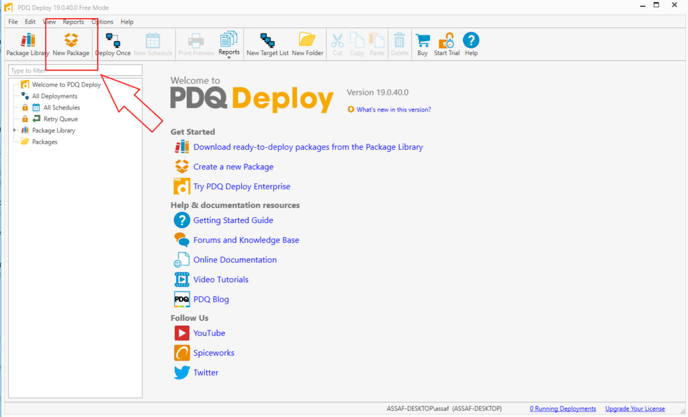
Step 2. Open PDQ Deploy and click New Package in the top panel.
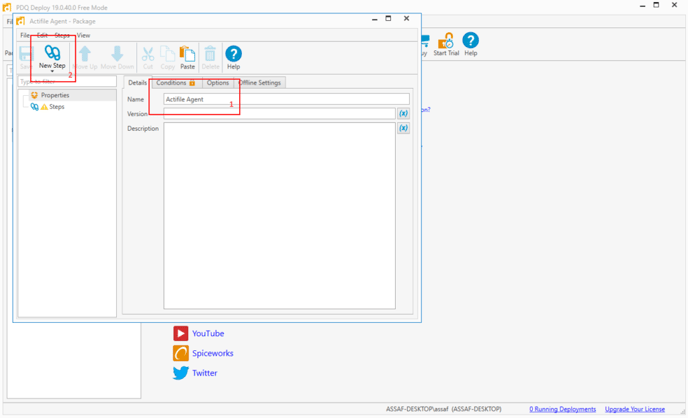
Step 3. Give a name to the package (e.g. Actifile Agent), then click New Step in the package configuration.
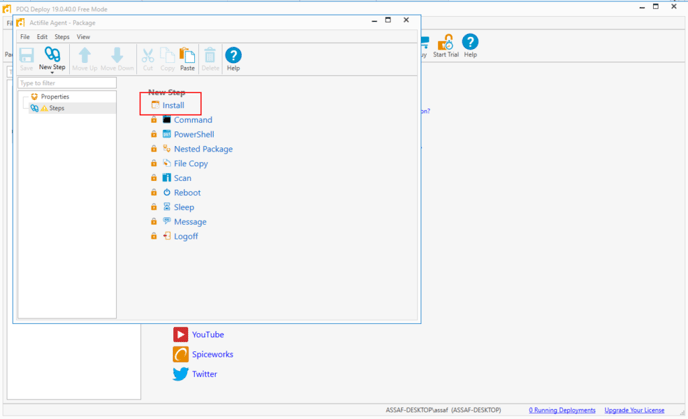
Step 4. Select the Install step type.
Step 5. In the details pane:
- Enter the full path to the installer.
- Add the installation parameters, including the quiet directive and the install key (e.g.,
/q /installkey=1234-1234-1234-1234).
Important: Ensure the correct installation key is used for each customer.
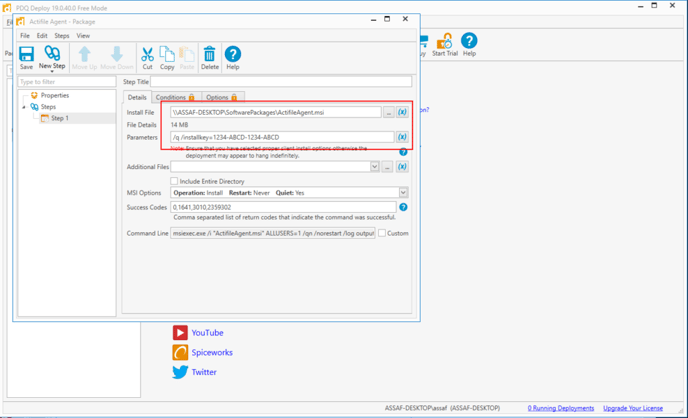
Once completed, the package will appear in the left-hand pane of PDQ Deploy.
Creating a Target Installation List
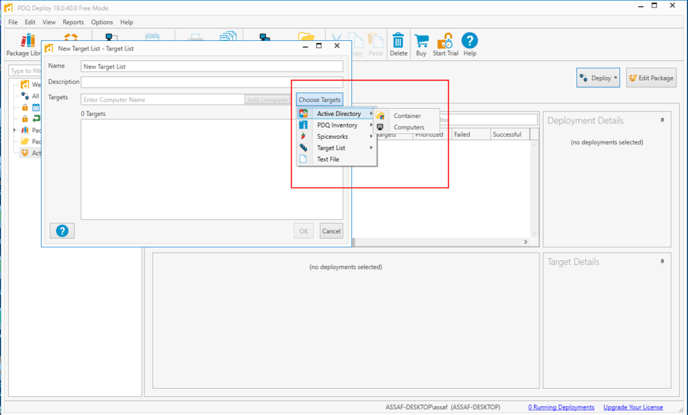
To define which devices will receive the installation, you can:
- Compile a list of workstations, laptops, and servers.
- Import targets manually, from a text file, or directly from a directory.
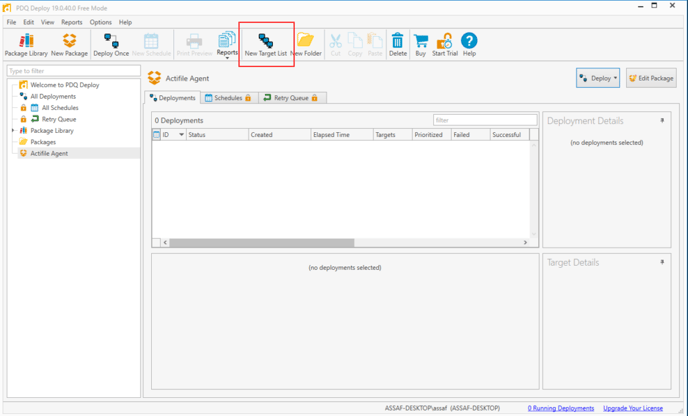
Step 1. Click New Target List in the top panel.
Step 2. Define a target list using the preferred method.
Deploying the Agent
Step 1. Right-click your target list and select Deploy Once.
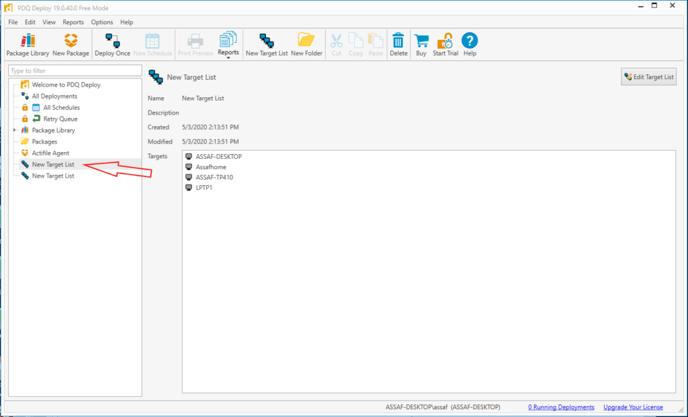
Step 2. Review the deployment details and click Deploy Now.
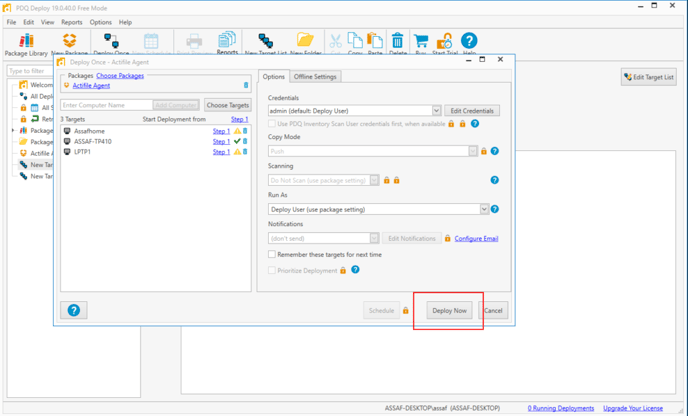
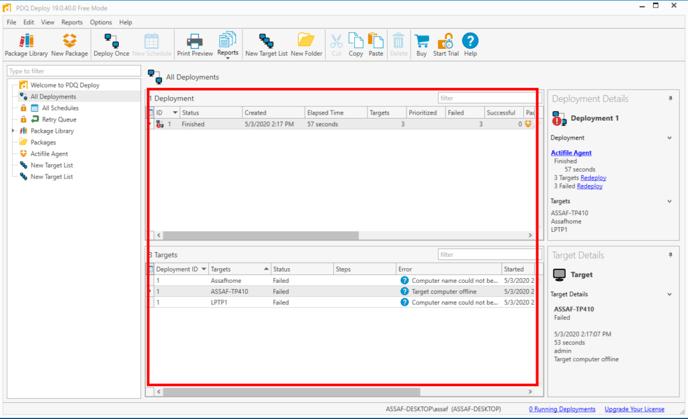
Step 3. Once deployment is complete, open the Deployment Page to verify success. Check logs for failed installs—PDQ Deploy provides detailed error messages for troubleshooting.